

Topics
- Key concept
- RBAC
- When to elevate access
Key concept
- Role-based access control (RBAC)
RBAC
- To grant access to a subscription, identify the appropriate role to assign to an employee
Scenario: Requirement of the presentation tier is to use in-memory sessions to store the logged user’s profile as the user interacts with the portal. In this scenario, the load balancer must provide source IP affinity to maintain a user’s session. The profile is stored only on the virtual machine that the client first connects to because that IP address is directed to the same server.
Azure RBAC roles vs. Azure AD Roles
| RBAC roles | AD roles |
|---|---|
| apply to Azure resources | apply to Azure AD resources (particularly users, groups, and domains) |
| scope covers management groups, subscriptions, resource groups, and resources | has only one scope, the directory |
| This greater access grants them the Azure RBAC User Access Administrator role for all subscriptions of their directory | An Azure AD Global Administrator can elevate their access to manage all Azure subscriptions and management groups |
| – | Through the User Access Administrator role, the Global Administrator can give other users access to Azure resources. |
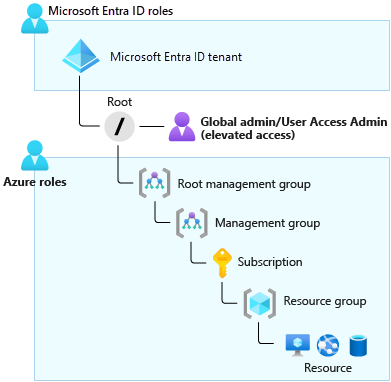
When to elevate access
- By default, a Global Administrator doesn’t have access to Azure resources
- The Global Administrator for Azure Active Directory (Azure AD) can temporarily elevate their permissions to the Azure role-based access control (RBAC) role of User Access Administrator, is assigned at the scope of root (This action grants the Azure RBAC permissions that are needed to manage Azure resources)
- Global administrator (AD role) + User Access Administrator (RBAC role) -> can view all resources in, and assign access to, any subscription or management group in that Azure AD organization
As Global Administrator, you might need to elevate your permissions to:
- Regain lost access to an Azure subscription or management group.
- Grant another user or yourself access to an Azure subscription or management group.
- View all Azure subscriptions or management groups in an organization.
- Grant an automation app access to all Azure subscriptions or management groups.
Assign a user administrative access to an Azure subscription
To assign a user administrative access to a subscription, you must have Microsoft.Authorization/roleAssignments/write and Microsoft.Authorization/roleAssignments/delete permissions at the subscription scope. Users with the subscription Owner or User Access Administrator role have these permissions.
# Assign the role by using Azure PowerShell
New-AzRoleAssignment `
    -SignInName rbacuser@example.com `
    -RoleDefinitionName "Owner" `
    -Scope "/subscriptions/<subscriptionID>"

# Assign the role by using the Azure CLI
az role assignment create \
    --assignee rbacuser@example.com \
    --role "Owner" \
    --subscription <subscription_name_or_id>

Get Access to an Azure subscription
- Elevate access

2. Verify access

3. assign a user as an administrator of a subscription

4. Revoke your elevate access
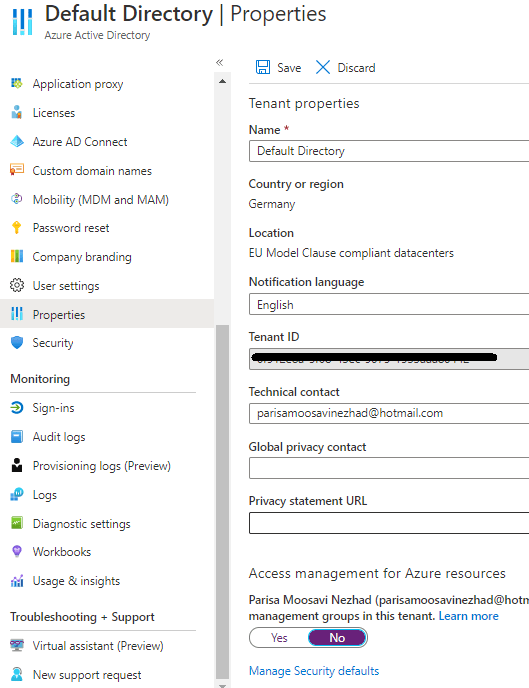
After revoke the elevated access the role assignments on subscription is as follows

Source
You owe your dreams your courage.
Koleka Putuma
 Multi Cloud Solutions