The Azure Migration Service can be used for assessment. This document explains how to use Azure Migration to assess an on-premises Hyper-v-based environment.
I had only non-domain Windows Servers on Hyper-v. For the credentials I added the credentials for Windows Servers and Hyper-v Host. I used the Username and Password of the servers. For the Hyper-v Host I used a local admin user.
Username: hyper-v-host-machine-name\local-admin-username (ex. del0074\parisaadmin) Password: The password
To discovery source the following values are required.
IP Address/FQDN: hyper-v-host-machine-name(ex. del0074) Map credentials: host
The Azure Virtual Network (VNet) is like a container that provide traffic isolation and segmentation.
An Azure virtual network (VNet) is a representation of your own network in the cloud. You can control your Azure network settings and define DHCP address blocks, DNS settings, security policies, and routing. You can also further segment your VNet into subnets and deploy Azure IaaS virtual machines (VMs) and PaaS role instances, in the same way you can deploy physical and virtual machines to your on-premises datacenter. In essence, you can expand your network to Azure, bringing your own IP address blocks.
The termes which are used in VNet are as follows:
Virtual Network
Virtual Network Subnet
Gateway Subnet
Virtual Network Gateway
Viurtual VPN Gateway
Network Security Group (NSG) -> Can be assigned to
Virtual Network
Virtual Machine
Sunbet -> at subnet level would be prefered.
User Defined Routing (UDR) -> for customizing traffic.
We can have one to many VNets but of course there’s subscription limitation. All VNets are isolated boundries. But there’s different types of connectivity available between VNets according to the scenario.
Connectivity types
VNets Peering
There’s two different VNets peering: – Global Peering – VNets Peering -> the VNets must be in the same region.
VPN Gateway/ Tunnel
The VPN Gateway is used for different types of connectivity: – VNet-to-VNet (Microsoft Doc) – Site-to-site -> On-premises env to Azure VNet (Microsoft Doc) – Point-to-site -> Laptop to Azure VNet
Express Route
Virtual Network Security
Provide network security with using
Network security group
Using attack simulation to access protection and detection capabilities of azure web application firewall (WAF)
Network Security Group (NSG)
The Network Security is applied to the network via Network Security Groups (NSGs) and it has the following features:
It has a stateful firewalll for inbount and outbound traffic.
– Built-in high availability and auto scale – Network and application traffic filtering – Centralized policy across VNets and subscriptions
Complete VNET protection
Filter Outbound, Inbound, Spoke-Spoke and Hybrid Connections traffic (VPN and ExpressRoute)
Centralized logging
Archive logs to a storage account, stream events to your Event Hub, or send them to Log Analytics or Security Integration and Event Management (SIEM) system of choice.
Best for Azure
DevOps integration, FQDN tags, Service Tags, Integration with ASE, Backup and other Azure Services.
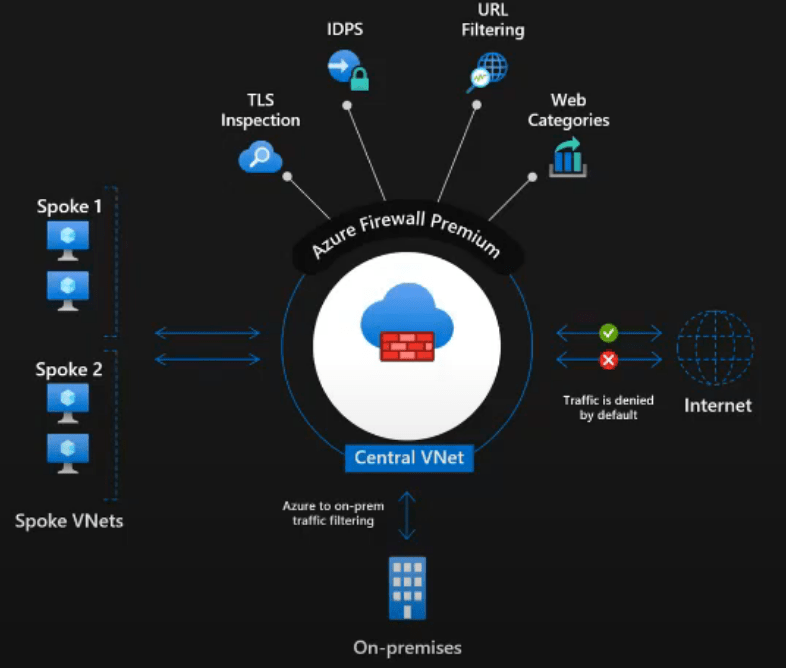
Azure Firewall Premium
Next-Gen Firewall features, including TLS inspection, IDPS, and URL Categories.
Service bus is available on azure platform with three different messaging possibilities:
Service Bus Queue
Service Bus Topic
Service Bus Relay
Service Bus Queue
It’s available for Basic Price Tier.
Service Bus Topic
It’s available for Standard / Premium Price Tier.
Service Bus Relay
Service Bus is usually for the enterprise level solutions, where the following items must be considered in the solution:
Multi components communicate with each other via brokered messaging
Communication is discrete.
A broker is needed to distribute the messages between components.
The message order is important (FIFO).
The application can have multi-tier architecture.
The application is hybrid (partially on-prem and partially cloud-based).
The applicaions of different departments must communicate with each other.
Service bus is created as a namespace and the message streamings are defined in the namespace and the price tier is defined at namespace level.
With Premium price tier is possible to define the Message Units. The message unit, isolate the workload processing in CPU and Memory. therefore, the partitioning option is removed from Create Queue and Topic blade. Two are features for premium are:
Event -> for automation
Firewall and virtual networks
Bus Service Overview
It’s available in Premium Price Tier
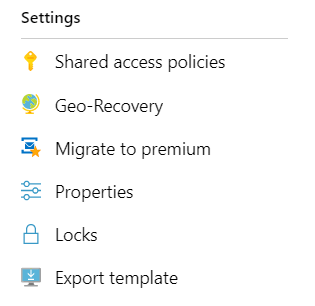
Shared Access Policies: in this blade we access the primary & secondary key & connection.
This is available in premium price tier
Queues: Add serveral queues.
Topics: Add several topics.
Secure Acceess
Uses the Shared Access Signature (SAS) with full access. This is generated by creating the service bus namesapace.
For Developers
The development has two parts
Sending message to the service bus queue
Handling/ process the messages in the service bus queue
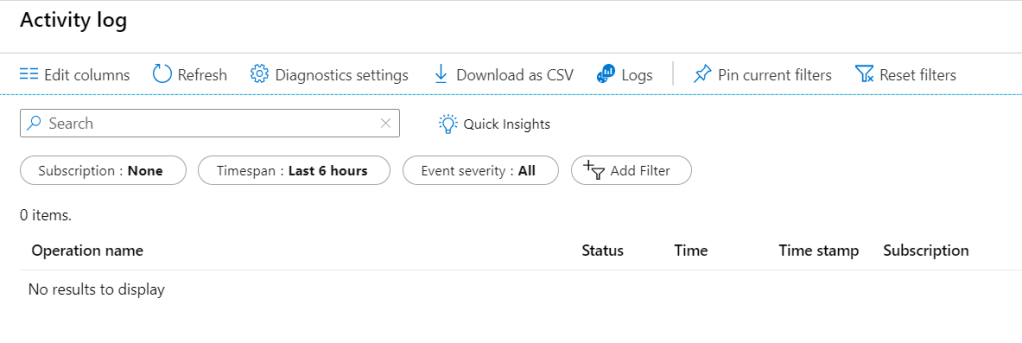
Azure Activity Log -> provides insights into subscription-level events. Retention period of 90 days
Benefit of connecting Activity Log to Log Analytics
consolidate the activity logs of multi subscriptions in one place for analysis.
Store Activity Log enteries for more than 90 days.
Correlate Activity Log data with Azure Monitor data.
Use Log queries for complex analysis and get deep insight on Activity log.
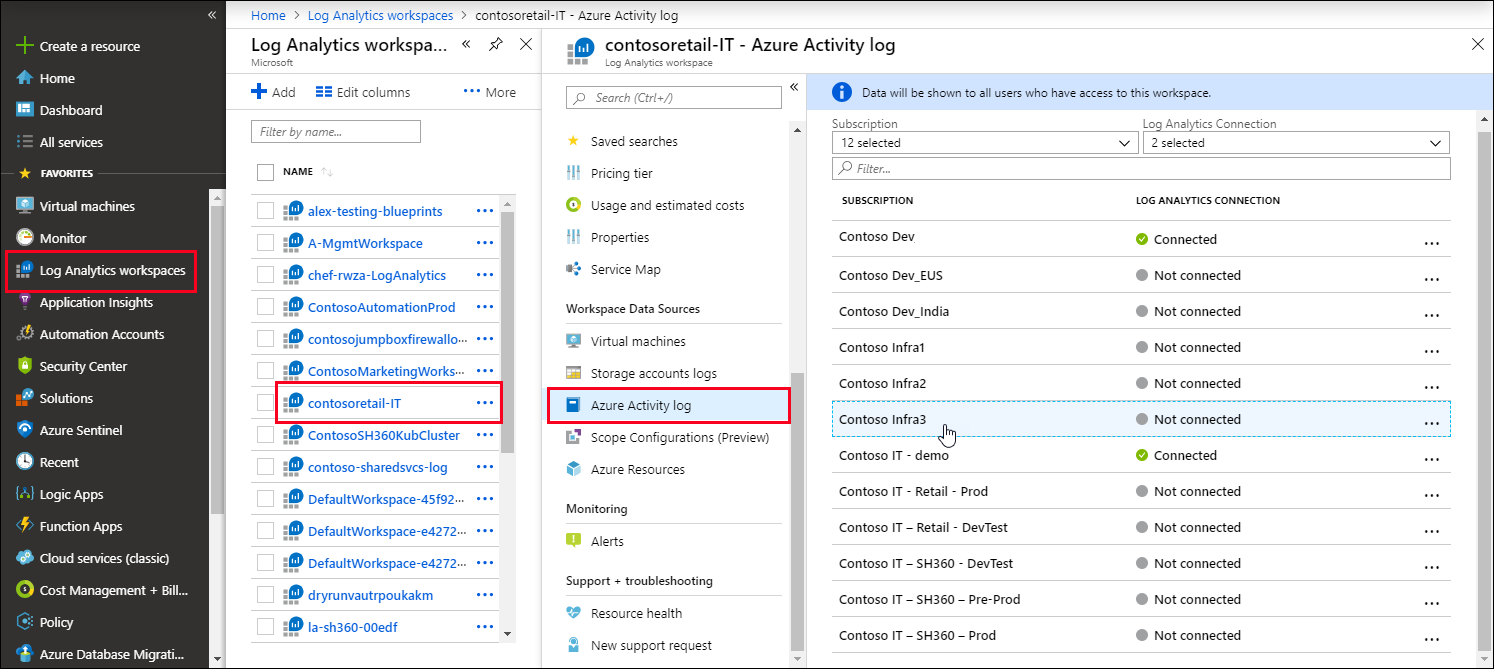
Note Each subscription has only one Activity Log. Each Activity Log can be connected to only one Log Analytics Workspace. One Log Analytics Workspace can be connected to the Activity Log of multiple subscription in a same tenant.
Connect an Activity Log to a Log Analytics workspace
Variante 1 (form log analytics blade) Go to the Log Analytics Workspace > Select one of the created workspaces > From the blade > Azure Activity Log > Select one Subscription > Connect | Disconnect
Variante 2 (from activity log blade) Select a resource > Select Logs / Diagnostic settings menu > Select a Log Analytics Workspace.
In the Cost Management + Billing service blade > Cost analysis > there’s a possibility for filter after tag and if the environment like dev, Prod has been considered as tag. We can filter here.
Azure Monitor: this codument go through the important aspects of it.
Azure Security Center
Azure Sentinel
Monitoring concepts
Each project need a holistic monitor strategy.
Scenario: A financial organization is moving its systems to Azure, with a mixture of IaaS and PaaS services. In its previous environment, the organization had several instances where systems failed or issues arose. There was an extended delay to engage resources and resolve the issues. This situation affected customers’ ability to access their accounts, and it influenced satisfaction. The organization wants to design a monitoring strategy that encompasses all the solutions that it uses. There should also be insights and alerting into the accumulated log data. The organization wants to quickly identify and minimize the impact if systems fail in the future.
Continuous monitoring strategy
it can improve the ability to identify issues within application
it can help to improve customer experience
to monitor performance of infrustructure and application
monitor security risks and suspicious activity
collect information on issues and analyse and then respond
in long run, your organization will become more productive, cost-effective, secure, and competitive.
why monitor applications
to improve application health
configure alert and automated response to deal with issues
to improve the development lifecycle, we can use monitoring, therefore we would be ready when we go to production
why monitor infrustructures
because of issues that could render the entire infrastructure unavailable
because of threats to security (these can have impact on productivity, financial loss, damage organization reputation )
risk of suspicious user account
malicious ip addresses
create automated response to alerts with playbooks and webhook.
learn from issues, strengthen protection, build an improved infrastructure
even in development phase monitoring can help developers
Azure Monitor agents
Azure Diagnostics Extension
An agent in azure monitor
Collects monitoring data from guest operating systems of azure compute resources include virtual machines.
We don’t pay for the extension but we pay for data ingestion
Data destination is azure storage account or other data sinks (additional destinations).
Scenarios
Collect guest metrics into azure monitor metrics (collect logs from middle-tier/vm and transfer to azure monitor)
Send guest logs and metrics to azure storage for archiving
Send guest logs and metrics to azure event hubs to send outside of azure
A proactive notificaion when an important notification found in monitoring (response to incidents).
Alert is raised before customer identifies and addresses an issue.
Unified alerts are managed by log analytics and application insights.
The previous type of alert are classic alerts.
Alerts are raised for matrics and logs. Ex. Metric values, Log search queries, Activity log event, Health of the underlying azure platform, test for website availability.
Alert states
Alert state
Description
New
Issue has been detected but has not been reviewed.
Acknowlaged
Administrator has reviewed the alert and started working on it.
Closed
Issue has been resolved.
NOTE : The state changes are stored in alert’s history.
Alert states are independent of Monitor condition (fired or resolved).
Different type of reaction to an incident
Alerts & alert rules & action group
Classic alerts
Metric alerts
Log alerts
Activity log alerts
common alert schema
Smart groups (aggregation of lalerts base on machine learning algorithms)
Auto scale
Change analysis
Permission and privilages
We can use the Role-based access control (RBAC) at different levels
Subscription Level
Resource Level
The RBACs which are available for Azure Monitor service are the following:
Monitoring Contributor
Monitoring Metrics Publisher
Monitoring Reader
Ex. A user with the Monitoring contributor access for VM1 can only consume and mange the alert that have been generated for VM1.
Add new Alert
Alerts are defined via Azure Minitor Service blade.
Go to Azure portal > Monitor service> Go to Alerts section > Use add alert rule button.
According to the seleced resource there’s different signals available.
Signal types
Metrics
Activity logs
The alert configuration is different respectively. But without considering the signal types always we need the following items for creating an alert rule in Azure Monitor Service.
Resource (For the scope of Alert Rule)
The scope of alert is specified in this step. – Subscription level – Resource Group level – Region – A specific resource – One Alert Rule for multiple resources with the same Resource Type is available.
Disadvantage of Active Directory If a company has use the Active Directory of the authentication and the personals are allowed to do home office, therefore they need to use VPN Connection to authenticate to the company’s Active Directory. This isn’t so secure.
Manage and authentication for mobile and modern devices
Classic active directory cannot manage modern devices with the following features:
Group policies
Kerberos or NTLM (works poorly)
Session based security
What can help us to manage the modern devices:
Mobile device management
OpenID connect and OAuth
Access token and refresh token
Forms-based Authentication
Protocols
WS-Federation
It’s a redírect-based flow. we go to a site and site says we are anonymous, and it redirects us to a authentication provider.
The user can pick an authentication provider and we provide the credential and then we get SAML post back.
SAML looks like XML and it contains what they call a SAML assertion and that establish your identity.
SAMLp
More flexible and supports more structured way to do SAML, more attributes.
OpenID Connect
OpenID Connect & OAuth are not synonymous.
OAuth is about a delegation protocol. For example I say, I’m allowing you to access my application if you match certain criteria. In this case I don’t know about the identity but if you have brown eyes and brown hairs, you are allowed to work with my software.
OpenID Connect says that you have to have minimum set of protocols that also establish your identity. OpenID is not only for web / mobile application. It can be applied to anything.
The following figure demonstrates the OpenID Connect usage for Web Application.
Insert photo here!
Single Page Application
Single Page Application is typically written in JavaScript (OAuth 2.0 Implicit Flow). Using OAuth 2.0 implicit flow and Single Page Application don’t have a secure way of storing long-lasting refresh token.
In OAuth 2.0 implicit flow, we assume that with closing the browser the user is logged out. Therefore OAuth 2.0 is suitable for Single Page Application.
Native Application
Like the applications running on a Mac OS, Linux OS or Windows OS, we use the Authorization Code Grant Flow. Here we have capability of storing long-lasting refresh tokens in a secure, encrypted manner offline.
Azure AD Authorization features
Azure AD V1 endpoint
Authorization Code Grant Flow It has used authorization code grant flow for mobile apps and desktop applications as well.
Azure AD V2 endpoint
Authorization Code Grant Flow It prefers not to use authorization code grant flow for mobile app but only for desktop applications. Proof of key exchange (PKCE) flow It’s for mobile application.
In practice’s Scenarios
Web Browser talks to Web App It can be developed with WS-Federation, SAMLP, OpenID Connect.
Sigle Page Application talks to Web API It can be developed with OAuth to implicit flow, so ADAL.JS, MSAL.JS.
Native App talks to Wen API
Web Application talks to Web API It uses user credential delegated credentials, or using application’s identity.
Daemon If there’s no authentication opportunity. Daemon can call API registered in Azure AD.
Create a MVC Project with the following PowerShell code
Perform authentication
Create a .Net core MVC project via the PowerShell.
# Create .NetCore MVC Project
$ProjectName="DotNetCorePipeline"

cd C:\YOUR PATH\AuthenticationForDevelopers

new-item -Name $ProjectName -ItemType directory

cd C:\YOUR PATH\AuthenticationForDevelopers\$ProjectName

dotnet new  mvc --auth SingleOrg  --client-id YOUR CLAINT ID  --tenant-id YOUR TENANT ID  --domain YOUR DOMAIN NAME --no-https
After creating the project go to project folder and open the project file in Visual Studio and run the project. [More Info about ID Tokens]
Business to Consumer (B2C)
for scenarios, in which the external users are the focus.
Identities not known ahead time
Social login may be required ( can be simple username, password authentication, with/without MFA) -> other identity provider like social accounts
Custome user experience and brand promotion is important -> via collecting information from market
Keep evrything secure and standard compliance.
In Practice
Create a B2C Directory (it has two steps. First create a new one. Second assing to Subscription.)
Register and configure an application
Create an application that uses Azure AD B2C
Token-based authentication to SQL resources
SQL resources are the following SQL database, SQL warehouse and SQL server. The authentication is possible via AD.
It’s via power shell and API management Rest API possible.
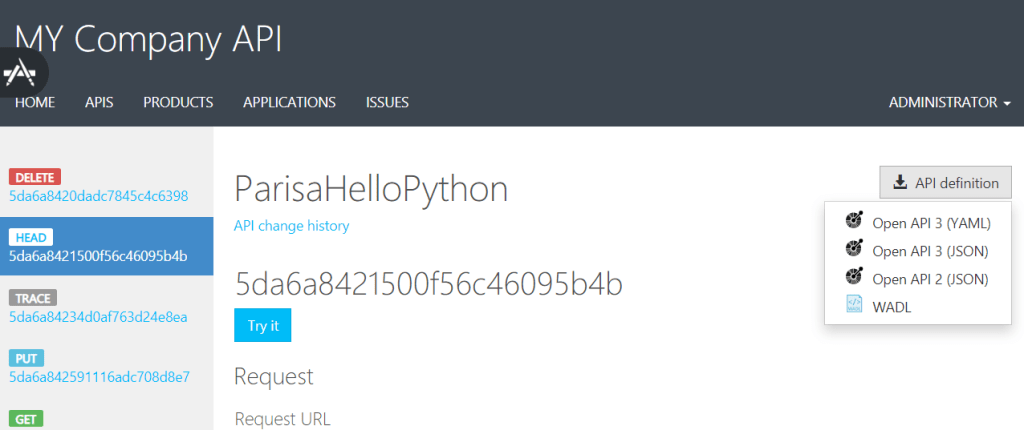
Export API definition for developers
The developers can export the API definition in OpenAPI JSON format and WADL from API Management Developer Portal.
And the developers can use these files to generate client-side code by using the tools, which is adequate for them such Swagger codegen or Postman to start calling the API in a short time.
Azure Portal > API Management > Select the API Management Instance > APIs > Developer Portal Button > APIs Tab in Developer Portal > Select an API > We see the list of APIs Actions/Operations > Select an Action > API definition button -> Download the OpenAPI 3/ 2 JSON or YAML format or WADL.
API definition button to download the definition for Swagger or Postman










 Multi Cloud Solutions