As we know Microsoft Azure Cloud platform works seamlessly with Azure Active Directory (AAD).
The following products are three of many cloud-based Microsoft products.
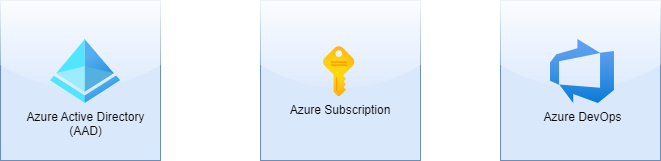
As demonstrated below each of them has its own RBAC. But only AAD manages the identities and the Azure Subscription & Azure DevOps and also the other products which can use ADD use the AAD’s identities.
We see that the users/identities are managed via AAD and products which can connect to ADD can profit from centralized identity management. AAD supports the single common digital identity. It means a user/identity must not have a separate identity to work with different services or products.
Note To keep this post simple I considered a user as an identity.
Identity is actually more than a user. It can be an identity of a user, or an identity of a service.
Identity protection in AAD
When having a single identity which is a great idea for identity management especially when you are talking about it at an enterprise scale, the security and protection of the identity are getting more important. An identity breach can cause unexpected and unimaginable consequences. Such as provisioning expensive resources on subscription, deleting a Repo, or a Project in DevOps.
For such breaches/compromises, there are different solutions. The easiest and quickest one is activating Multi-Factor Authentication (MFA) for the whole AAD. It means all the users that are managed with ADD must sign in with MFA.
How to activate MFA? watch the answer in this video.
Note I recommend having a comprehensive concept for activating MFA in huge projects or at an enterprise scale.
It doesn’t matter which cloud provider you are using never forget identity security and protection.
After activating MFA in this way the user has to log in to all the services, which are connected to this AAD, with MFA. MFA means using not only the username and password method but also a second authentication factor to identify who the user is.
To grant access to a subscription, identify the appropriate role to assign to an employee
Scenario: Requirement of the presentation tier is to use in-memory sessions to store the logged user’s profile as the user interacts with the portal. In this scenario, the load balancer must provide source IP affinity to maintain a user’s session. The profile is stored only on the virtual machine that the client first connects to because that IP address is directed to the same server.
Azure RBAC roles vs. Azure AD Roles
RBAC roles
AD roles
apply to Azure resources
apply to Azure AD resources (particularly users, groups, and domains)
scope covers management groups, subscriptions, resource groups, and resources
has only one scope, the directory
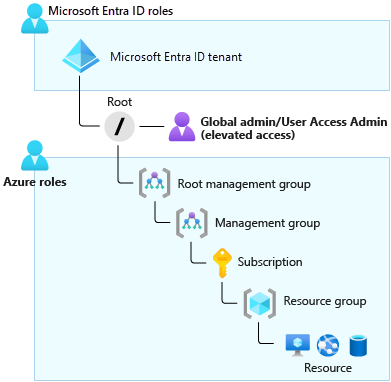
This greater access grants them the Azure RBAC User Access Administrator role for all subscriptions of their directory
An Azure AD Global Administrator can elevate their access to manage all Azure subscriptions and management groups
–
Through the User Access Administrator role, the Global Administrator can give other users access to Azure resources.
By default, a Global Administrator doesn’t have access to Azure resources
The Global Administrator for Azure Active Directory (Azure AD) can temporarily elevate their permissions to the Azure role-based access control (RBAC) role of User Access Administrator, is assigned at the scope of root (This action grants the Azure RBAC permissions that are needed to manage Azure resources)
Global administrator (AD role) + User Access Administrator (RBAC role) -> can view all resources in, and assign access to, any subscription or management group in that Azure AD organization
As Global Administrator, you might need to elevate your permissions to:
Regain lost access to an Azure subscription or management group.
Grant another user or yourself access to an Azure subscription or management group.
View all Azure subscriptions or management groups in an organization.
Grant an automation app access to all Azure subscriptions or management groups.
Assign a user administrative access to an Azure subscription
To assign a user administrative access to a subscription, you must have Microsoft.Authorization/roleAssignments/write and Microsoft.Authorization/roleAssignments/delete permissions at the subscription scope. Users with the subscription Owner or User Access Administrator role have these permissions.
# Assign the role by using Azure PowerShell
New-AzRoleAssignment `
    -SignInName rbacuser@example.com `
    -RoleDefinitionName "Owner" `
    -Scope "/subscriptions/<subscriptionID>"

# Assign the role by using the Azure CLI
az role assignment create \
    --assignee rbacuser@example.com \
    --role "Owner" \
    --subscription <subscription_name_or_id>
Support modern authentication protocols. (e.g. WS-FED, SAML Federation, OpenID Connect, OAuth)
Azure AD will come with SDKs like ADAL and MSAL.
Azure AD supports the scenarios like B2C, B2B, B2E (employee) and Software As a Service (SaaS) applications.
Hybrid Active Directory (On-Prem & Cloud)
The on-premises identities can be synced to the Cloud via Azure AD Connect Tool.
Even Multiple forests can be synced.
The authentication can be federated to the on-premises with (ADFS).
The identity can be manged in Azure AD but authentication can be done by on-prem AD server.
The on-prem group policies can be synced in Azure AD.
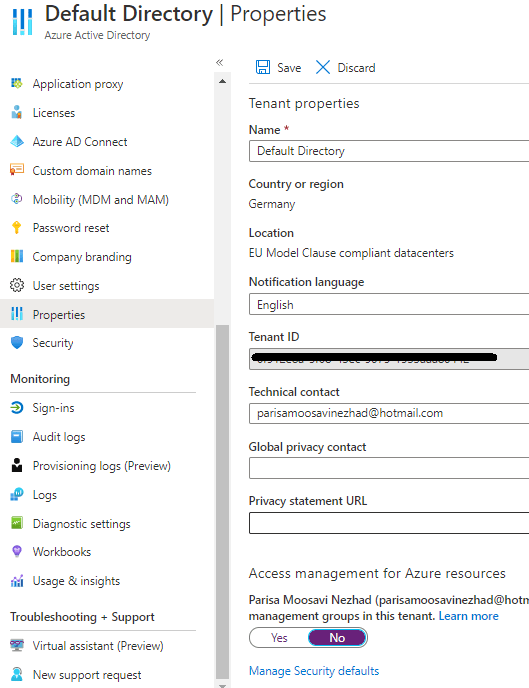
Azure AD Connect has demonstrated in Azure Active Directory’s blade overview part
Hybrid identities
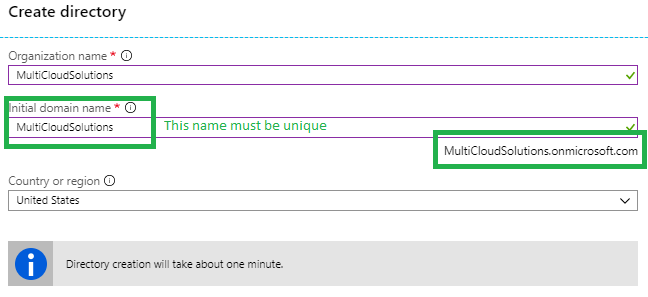
Create a new active directory on Azure
Organization name: where we want to reference e.g. <MY_ORG>.local
Initial domain: <MY_ORG>.onmicrosoft.com
name, country, region
Add e.g. <MY_DOMAIN_NAME>.com as a new domain name for the <MY_ORG>.onmicrosoft.com
Verify the ownership of the domain name by adding a TXT record to the DNS Server
Add UPN suffix to the on-prem forest. Server > Tools > Active Directory Domain and trusts > Right click Active Directory Domains > Properties > Alternative UPN Suffix > Add <MY_DOMAIN_NAME>.com
Go to users on on-prem AD and change the domain to alternative domain or using powershell via Get-ADUser and Set-ADUser commands.
For hybrid identities we use Azure AD Connect.
We need a Global Admin Account in AAD.
Download and install Azure AD Connect on the on-prem AD Server.
Provisioning a Azure Active Directory
Create Azure Active Directory (Azure Portal > All Services > Create button > the following image)
Azure Active Directory’s blade overview
Users
Groups
Enterprise applications: add new SaaS applications like Box, Dropbox,…
Devices: to mange devices.
App registration: Register application to machine to machine communication / client credential flow [more].
Application proxy: for exposing on-premises.
Azure AD Connect: for sync with on-prem Active Directory to AAD for hybrid identity.
App registration
App registration blade features are:
New Registration
Endpoints
Troubleshooting
Listing the registered applications ( All Applications | Owned Applications)
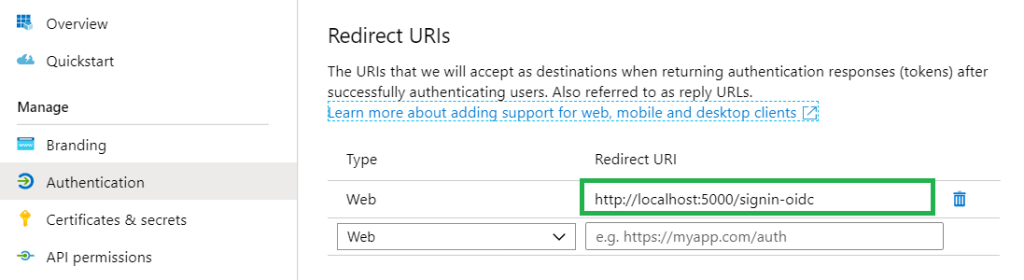
Native is like mobile app, desktop application or javascript single-page application. Redirect URL is where Azure AD directs the authenticated user’s details.
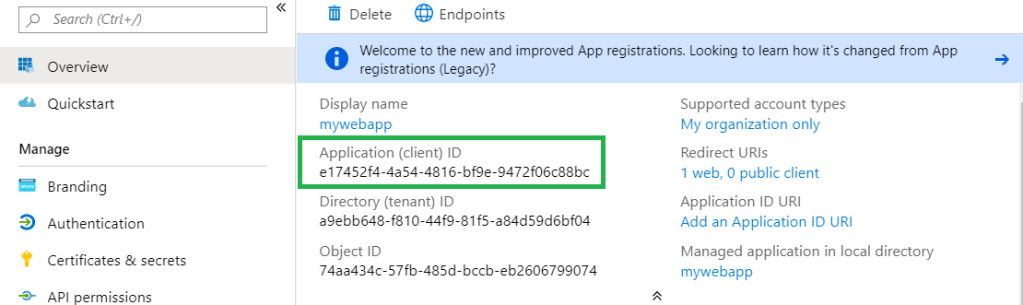
After the app registration, the following items can be important for developers. They are always available on the registered app blade.
Application or client ID via Overview blade
Redirect URL after successful authentication via Authentication blade
Logout URL via Authentication blade
How to go the registered app blade
AAD > App registration> select & click the registered
Application/ Client ID
Redirect URL after successful authentication
Logout URL
App Registration usages
For developing the Client Credential Flow / Machine to Machine communication
For login to Azure API Management’s Developer Portal with AAD/ AAD B2C identity
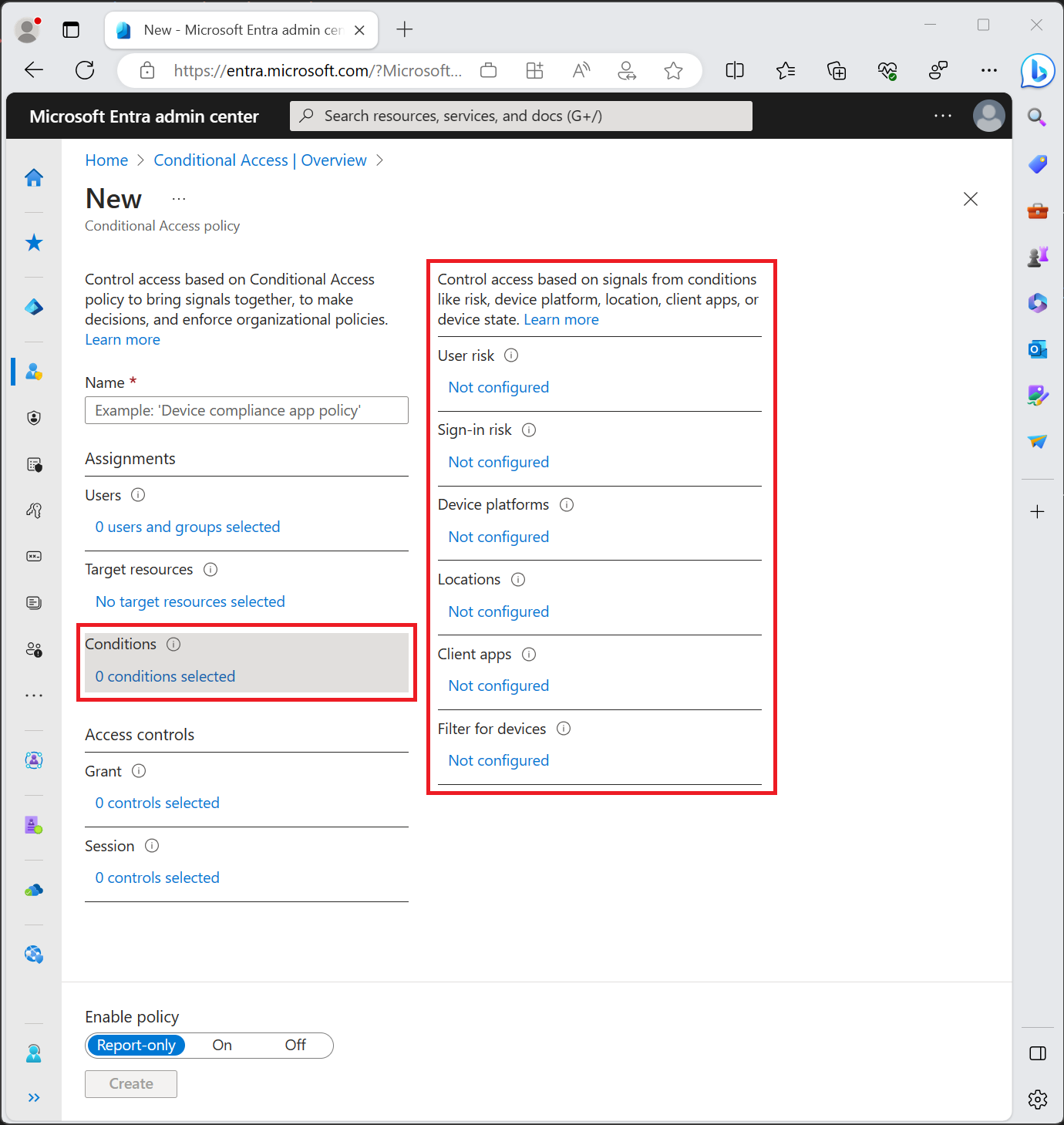
The conditional access policy uses the Sign-in Risk value (it’s a probability). But it’s not the only value. Based on the policies different probability values have to be calculated [more]. Based on how conditions are configured different values are calculated and used.
In Grants either you block the users who have the conditions or you grant then if one of the checkboxes is available. Multi-factor is available only in the following licenses but with some differences [more]:
Microsoft 365 Business Premium and EMS or Microsoft 365 E3 and E5
Report-only mode is a new Conditional Access policy state that allows administrators to evaluate the impact of Conditional Access policies before enabling them in their environment. With the release of report-only mode:
Conditional Access policies can be enabled in report-only mode.
During sign-in, policies in report-only mode are evaluated but not enforced.
Results are logged in the Conditional Access and Report-only tabs of the Sign-in log details.
Customers with an Azure Monitor subscription can monitor the impact of their Conditional Access policies using the Conditional Access insights workbook.
in large organizations it’s so important that not all the colleagues who are working together on a project to be able to release/ deploy the product in production environment.
There must be always a check list to get ready for deploying in production. Nowadays this check list is called continuous integration/deploy (CI/CD).
The check list before deploy the product on production environment
Therefore the project team try to grant permission according to the responsibilities and tasks or each colleagues to team. On of the tools which we can use to develop a project with the agile method is Azure DevOps.
There is also possible to assign built-in Access Level and Security Group to each member of team as explained in follows.
The users/ members in Azure DevOps always have an assigned DevOps Group and Access Level.
DevOps Built-in Access Level
Access Level defines the Azure DevOps Features that a user or group can use.
Access Levels
Description
Basic
Basic supports full access to all Azure DevOps Board features
Stakeholders
Provides partial support for viewing and modifying work items but not using all features.
Visual Studio Subscriber
Free access to a limited set of features.
DevOps built-in security Groups
Security Groups define what users of groups can do with each Azure DevOps features.
Azure DevOps has mainly two different level of built-in groups [Microsoft Doc]:
Collection-Level
Project-Level
The Team Administrator is the person who can grant permissions to specific features.
Note
Your Text Here
Project-Level Security Groups
Each project contains the following built-in groups:
Permission to view project information, the code base, work items, and other artifacts but not modify them.
Project Contributors
Permission to contribute fully to the project code base and work item tracking. They cannot manage or administrator resources.
Project Administrators
Permission to administer all aspects of teams and project. Although they cannot create team projects.
Combination Matrix of the Access Level and Security Group
in Project-Level
DevOps Security Groups
Access Levels
Description
Project Readers
Stakeholder
–
Project Readers
Basic
–
Project Readers
Visual Studio subscriber
–
Project Contributors
Stakeholder
Managers or users who don’t actively contribute to the code base but want to check project status or provide direction, feedback, feature ideas, and business alignment to a team.
Project Contributors
Basic
Full-time workers who contribute to the code base or manage project.
Project Contributors
Visual Studio subscriber
Code base contribution
Project Administrators
Stakeholder
The users, who are tasked to managing project resources. If them also need to contribute to the code base, then the Basic Access Level must be assigned to them.
Project Administrators
Basic
Managing project resources + Code base contribution
Project Administrators
Visual Studio subscriber
Code base contribution
Combination Matrix of the Access Level and Security Group
in Collection-Level
DevOps Security Groups
Access Levels
Description
Project Collection Administrators
Stakeholders
The users, who are tasked with managing organization or collection resources and if they need to be contributed to the code base then they must be assigned to Basic Access Level.
Project Collection Administrators
Basic
–
Project Collection Administrators
Visual Studio Subscriber
–
Azure DevOps Levels
DevOps can be configured at different levels:
Organization/Collection
Project
Object
The focus of this document is Project-Level and object-Level.
Object-Level Groups
Managing the permission on Git branches.
Using Azure ADD Group in Azure DevOps
For managing the
users the Azure DevOps can be connected to Azure AD. The AAD Groups can be used
in Azure DevOps as well. But the Active directory Group hierarchy is not usable
in Azure DevOps. It means the sub groups will not inherit the access level and
permission group of their parent group.
Each AAD parent
and sub group must be added separately to Azure DevOps and an Access Level and
a Permission Group must be assigned to each one separately them.
The users which
are assigned to the same AAD Group will have the same Access Level and
Permission Group, which has been assigned to this AAD group in Azure DevOps.
Note
Your Text Here
The Advantage is:
A newly
added user to AAD Group can login to Azure DevOps and there is no need for
additional configuration.












 Multi Cloud Solutions