Azure Kubernetes Service (AKS) with Terraform deployment

  1. AKS components
  2. AKS security (service principal or managed identity)
  3. AKS operation (scaling and autoscaling)

AKS components

I assumed that you are familiar with the Kubernetes Cluster concepts (elementary level). Therefore I didn’t do any deep dive into the elementary components. The focus of this post is the following topics:

  • Azure-related Kubernetes components
  • Deploying AKS with Terraform

The control plane (Kubernetes core component)

It’s the core of the Kubernetes Cluster and doesn’t matter on which cloud provider platform you are provisioning a cluster. The main OS for AKS is Linux based.

Node pool (AKS component)

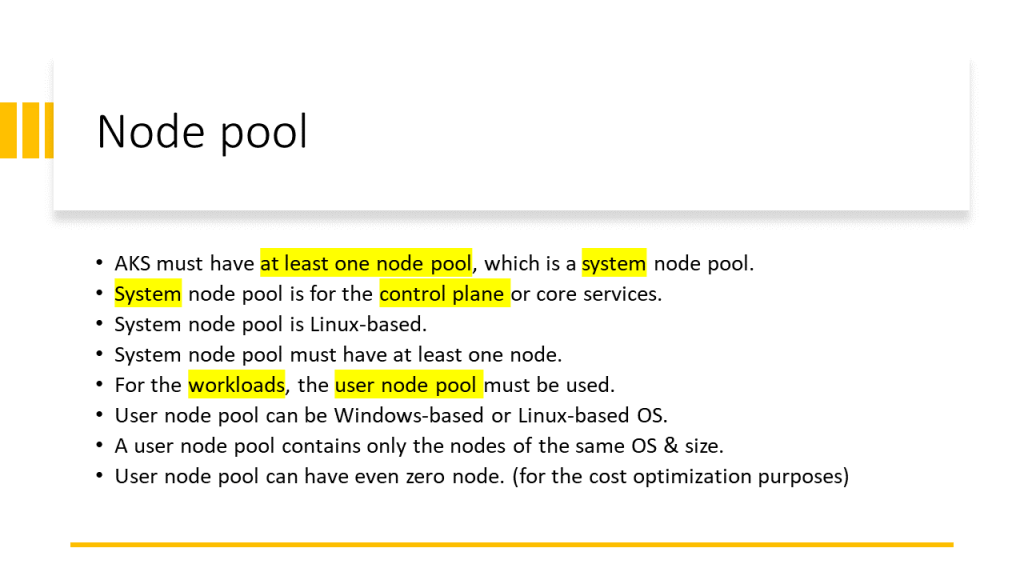
AKS has two types of Node pools:

  • System Node Pool: contains the nodes on which the control plane is running. For the control plane’s high availability is recommended to have at least 3 nodes in the System Node Pool.
  • User Node pool: contains the nodes on which my applications, APIs, APPs, or Services are running. This node pool can have one of the following host’s OSs.
    • Linux
    • Windows

An AKS Cluster can have both Windows and Linux -based User Node Pools in parallel. We can use nodeSelector in the YAML file to specify on which User Node Pool my application should be deployed. See more in the video below.

Note:
The importance is that all the nodes in a Node pool (doesn’t matter System or User) have the same VM size. Because we can specify one VM size for one Node Pool.

Node components

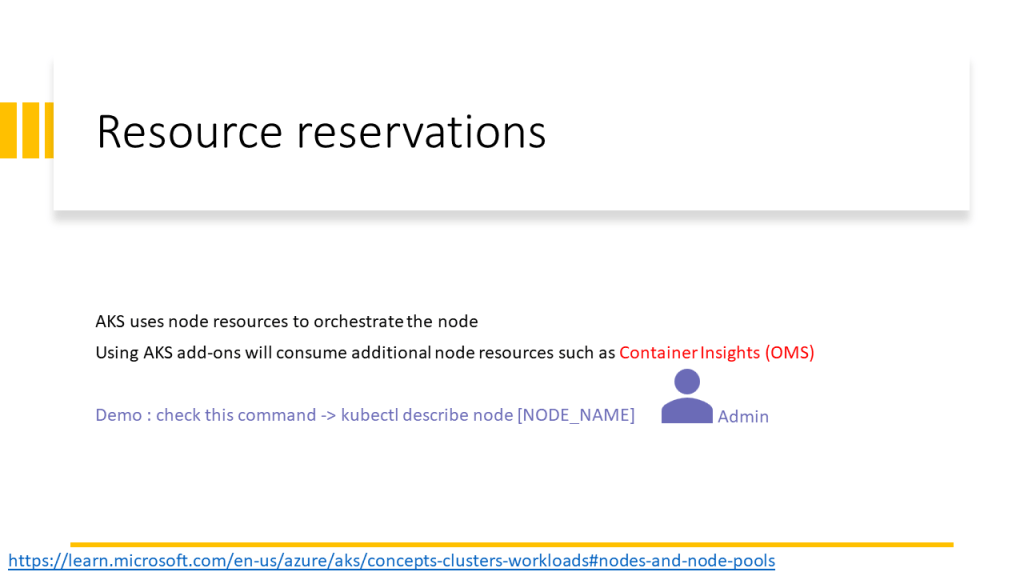
Each node in the Node Pool is a VM. Kubernetes uses the following components to orchestrate the nodes and pods that are running on the nodes.

  • Kubelet: manages deployments
  • Kube-Proxy: manages the nodes’ networking
  • Container runtime: up and run container images

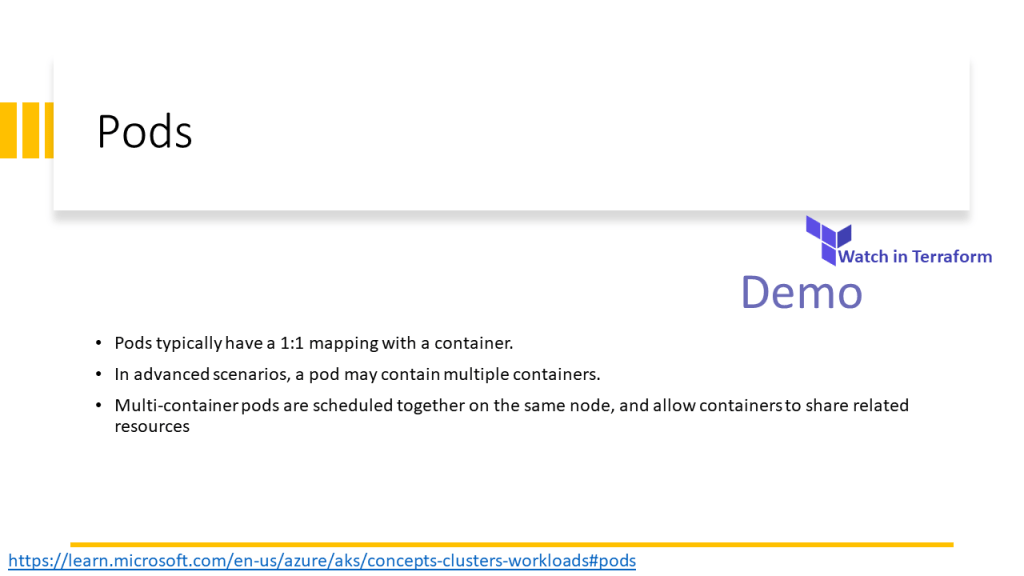
This video walkthrough the AKS core concept and components and its implementation in Terraform.

The PowerPoint slides of the video are available here.

Shared slides: https://www.slideshare.net/parisamoosavinezhad/aks-components

GitHub: https://github.com/ParisaMousavi/enterprise-aks

For a nodeSelector sample code see the sample YAML file here: https://github.com/ParisaMousavi/solution-11-aks-apps/blob/main/sample-win/sample.yaml it’s a ASP.Net Application that will be deployed on windows node.


AKS security (service principal or managed identity)

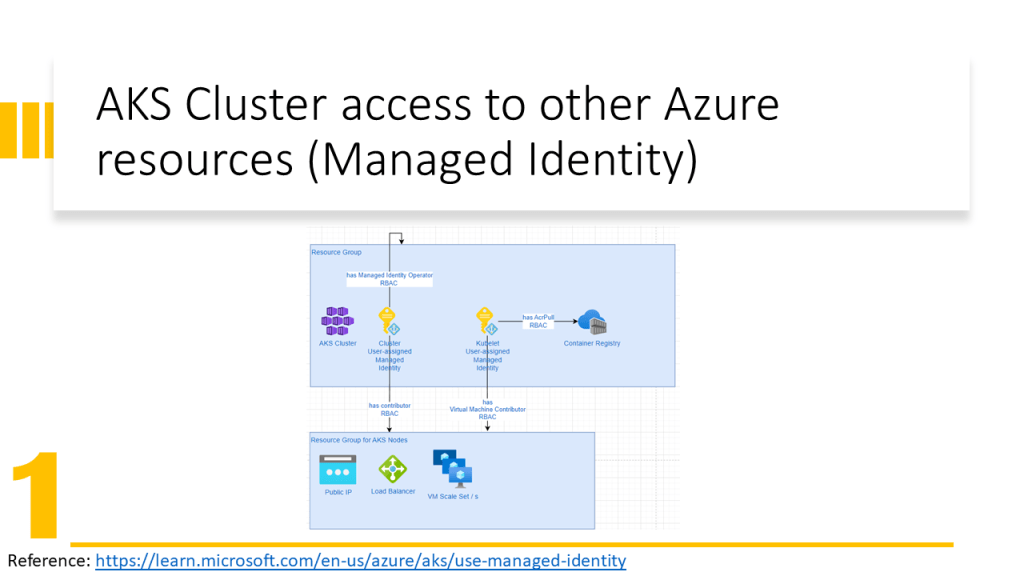
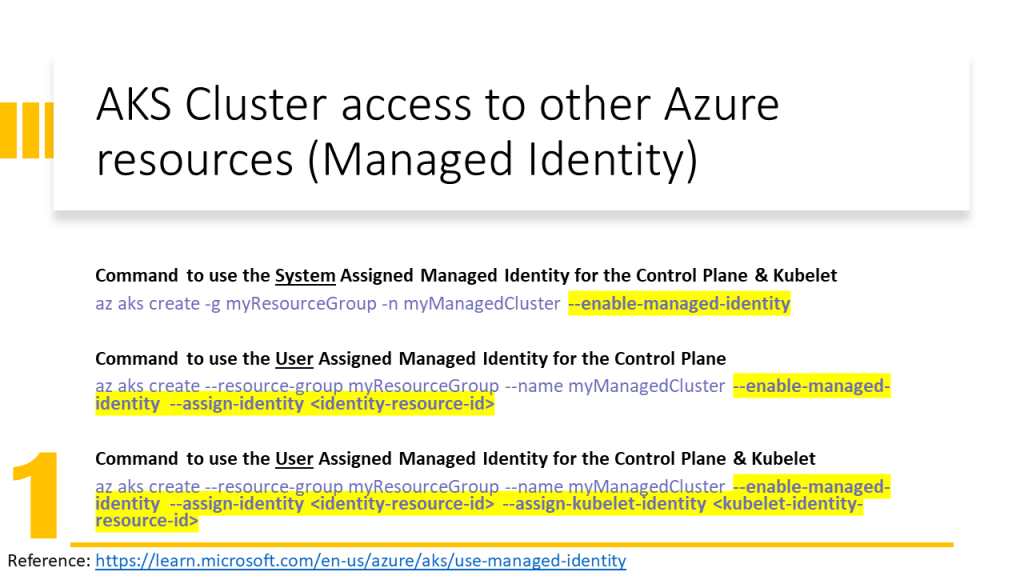
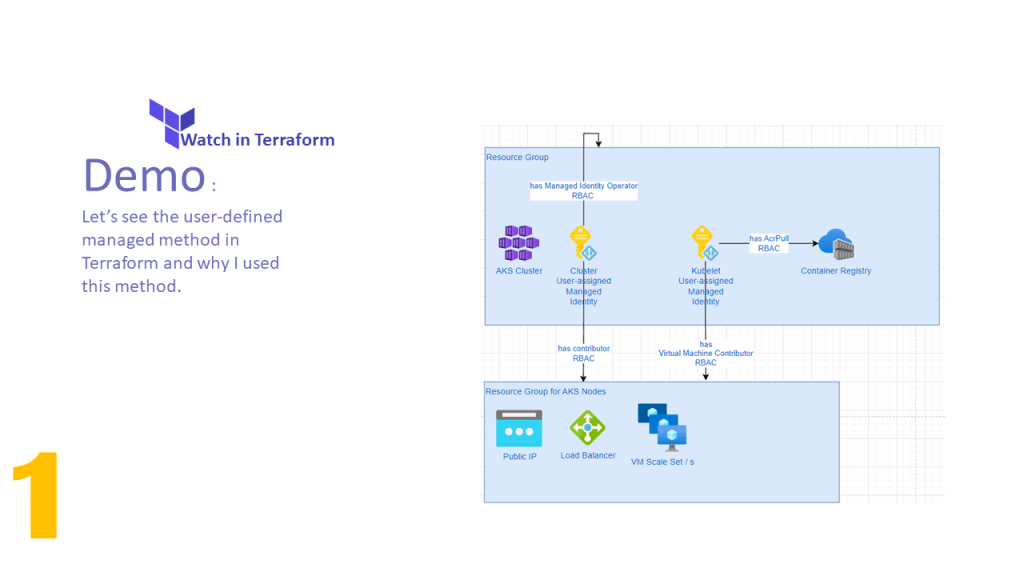
AKS Cluster needs access to other Azure resources e.g. for autoscaling must be able to expand the VM Scale Set and assign an IP Address to the VM. Therefore the AKS Cluster needs Network Contributor RBAC Role.

Kubele needs to pull images from Azure Container Registry, therefore it needs AcrPull RBAC Role.

Only an identity can obtain a role. In Azure, we have two possibilities:

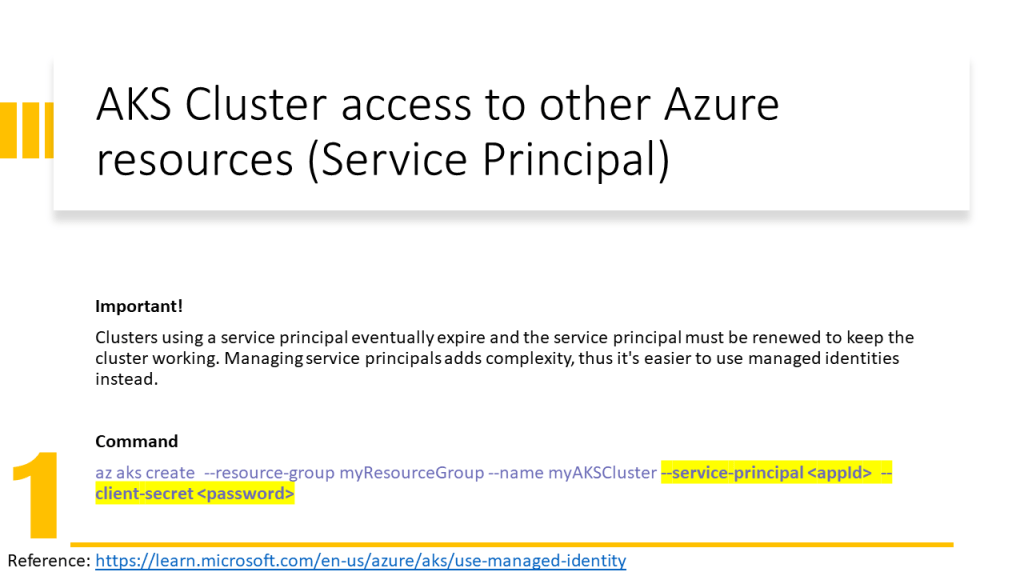
  • Associate a Service Principal to a Service (old solution in 2022) and give RBAC roles to the service principal.
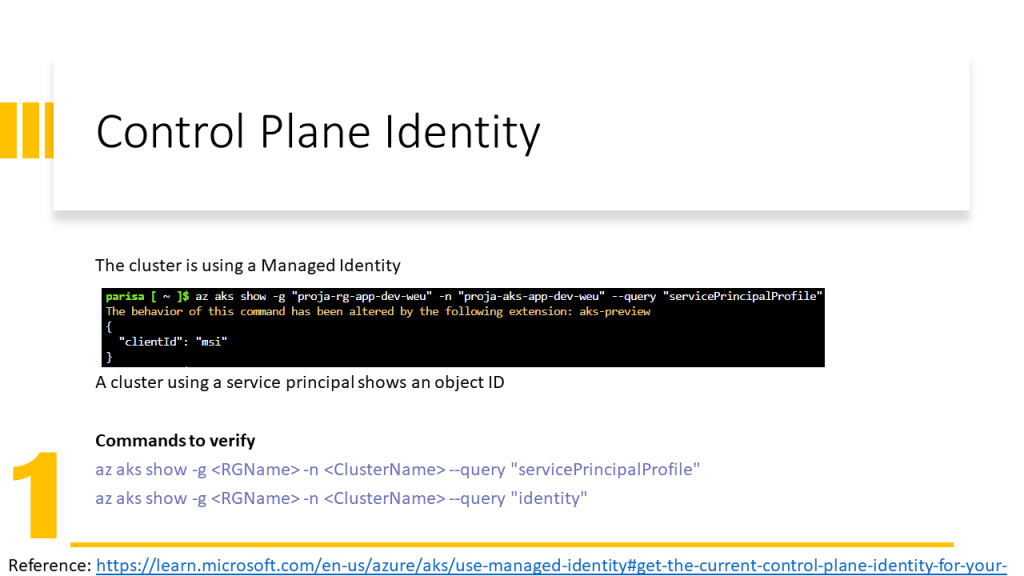
  • Assign an identity to a service (new solution in 2022) and give RBAC roles to this identity. Here we have two types of identities:
    • System Managed Identity: is created automatically and assigned to a service and is deleted when the service is deleted
    • User Managed Identity: is created by the user and the user should assign it to a service and is not deleted when the service is deleted.

In this video, I have explained how to configure the Terraform implementation to assign the User Managed Identity to AKS Cluster and Kubelet. In addition, has been explained how to assign RBAC roles to them and which RBAC role for which purpose should be assigned.

The PowerPoint slides of the video are available here.

Shared slides: https://www.slideshare.net/parisamoosavinezhad/aks-scurity-cluster-kubelet-access-to-services

GitHub: https://github.com/ParisaMousavi/enterprise-aks/tree/2022.10.24

AKS operation (scaling and autoscaling)

AWS : IAM User

  • Pipeline User
  • IAM User

Each AWS Account has its own AWS Identity & Access Management (IAM) Service.

If you know Azure
On Microsoft Azure, we have a Subscription. The AWS Account can be equivalent to the Azure Subscription. With a difference. Each AWS Account can have its own IAM Users but in Azure, we have a central IAM Service, called Azure Active Directory (AAD).
Each above-called service is a huge topic but we don’t do a deep dive right now.

The AWS IAM User can be used

  • Only for CLI purposes. This user can’t log in to the AWS Portal.
  • Only for working with the AWS Portal. This user can’t be used for CLI.
  • Both purposes. This user can be used to log in to the AWS Portal and CLI.

Pipeline User

The first question is why do we need a Pipeline User?

  • Automated deployment (CI/CD) pipeline and prevent manual or per-click deployment.
  • We can only grant the pipeline user for some specific permissions and audit the logs of this user.

This user can work with AWS Services only via CLI. Therefore it has an Access Key ID and a Key Secret.

If you know Azure
It’s used like a Service Principal, that you have a client-id and client-secret.

IAM User

Description and video come soon

Terraform : Cloud

Create organization and workspace in terraform cloud

  1. Sign up/in to this URL (https://app.terraform.io/signup/account)
  2. Skip all the questions
  3. Create an organization

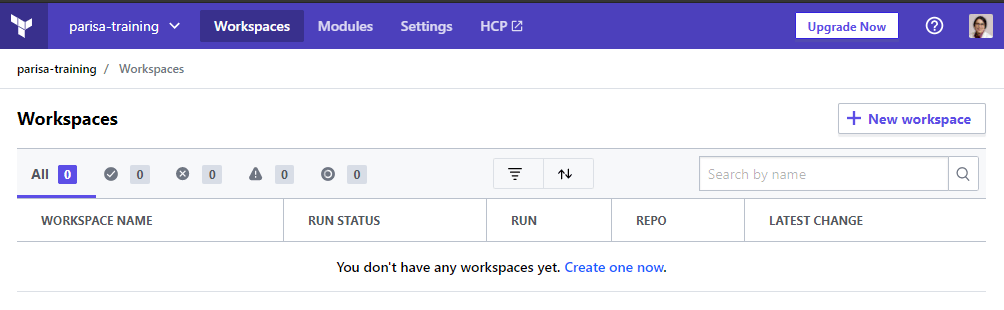
4. Create a workspace (by clicking on create one now)

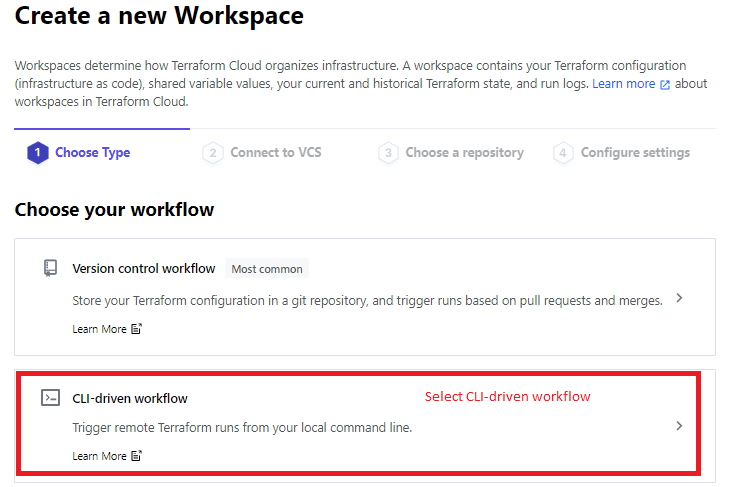
5. Select the type of the workspace (CLI-driven workflow)

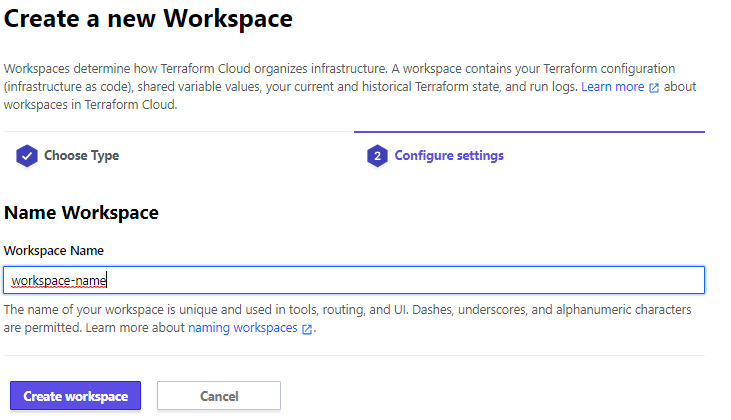
6. Give a name to the workspace.

7. Create the workspace.

8. After creation the workspace the following page is appeared.

9. Set the terraform version in workspace > Setting > General and save settings.

10. Change execution mode to local (to run Terraform commands from the workstation with local variables.)

11. Pay attention: you see two settings on the page.

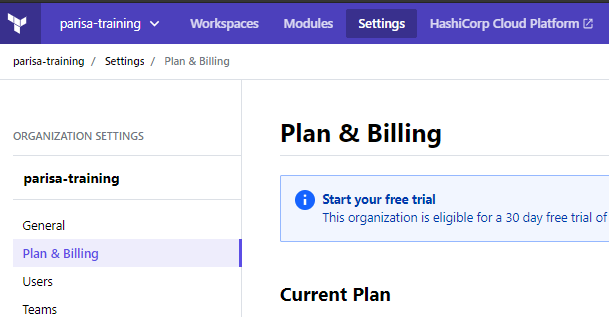
12. For changing the Plan & Billing go to the Organization setting.

We can use remote state to avoid saving the terraform state file locally and safe keeping the terraform state.


Configure remote state

Related links

DevOps Built-in Access Levels, Security Groups and AAD Groups

Scenario:

in large organizations it’s so important that not all the colleagues who are working together on a project to be able to release/ deploy the product in production environment.

There must be always a check list to get ready for deploying in production. Nowadays this check list is called continuous integration/deploy (CI/CD).

The check list before deploy the product on production environment

Therefore the project team try to grant permission according to the responsibilities and tasks or each colleagues to team. On of the tools which we can use to develop a project with the agile method is Azure DevOps.

There is also possible to assign built-in Access Level and Security Group to each member of team as explained in follows.


The users/ members in Azure DevOps always have an assigned DevOps Group and Access Level.

DevOps Built-in Access Level

Access Level defines the Azure DevOps Features that a user or group can use.

Access Levels Description
Basic Basic supports full access to all Azure DevOps Board features
Stakeholders Provides partial support for viewing and modifying work items but not using all features.
Visual Studio Subscriber Free access to a limited set of features.

DevOps built-in security Groups

Security Groups define what users of groups can do with each Azure DevOps features.

Azure DevOps has mainly two different level of built-in groups [Microsoft Doc]:

  • Collection-Level
  • Project-Level

The Team Administrator is the person who can grant permissions to specific features.

Note

Your Text Here

Project-Level Security Groups

Each project contains the following built-in groups:

  • Build Administrator
  • Contributor
  • Project Administrators
  • Project Valid Users
  • Readers

<ProjectName> Team

DevOps Security Groups Description [Microsoft Doc]
Project readers Permission to view project information, the code base, work items, and other artifacts but not modify them.  
Project Contributors Permission to contribute fully to the project code base and work item tracking. They cannot manage or administrator resources.
Project Administrators Permission to administer all aspects of teams and project. Although they cannot create team projects.

Combination Matrix of the Access Level and Security Group in Project-Level

DevOps Security GroupsAccess Levels Description
Project ReadersStakeholder
Project Readers Basic
Project Readers Visual Studio subscriber
Project Contributors Stakeholder Managers or users who don’t actively contribute to the code base but want to check project status or provide direction, feedback, feature ideas, and business alignment to a team.
Project Contributors Basic Full-time workers who contribute to the code base or manage project.
Project Contributors Visual Studio subscriber Code base contribution
Project Administrators Stakeholder The users, who are tasked to managing project resources. If them also need to contribute to the code base, then the Basic Access Level must be assigned to them.
Project Administrators Basic Managing project resources + Code base contribution
Project Administrators Visual Studio subscriber Code base contribution

Combination Matrix of the Access Level and Security Group in Collection-Level

DevOps Security GroupsAccess Levels Description
Project Collection AdministratorsStakeholdersThe users, who are tasked with managing organization or collection resources and if they need to be contributed to the code base then they must be assigned to Basic Access Level.
Project Collection Administrators Basic
Project Collection Administrators Visual Studio Subscriber

Azure DevOps Levels

DevOps can be configured at different levels:

  • Organization/Collection
  • Project
  • Object

The focus of this document is Project-Level and object-Level.

Object-Level Groups

Managing the permission on Git branches.

Using Azure ADD Group in Azure DevOps

For managing the users the Azure DevOps can be connected to Azure AD. The AAD Groups can be used in Azure DevOps as well. But the Active directory Group hierarchy is not usable in Azure DevOps. It means the sub groups will not inherit the access level and permission group of their parent group.

Each AAD parent and sub group must be added separately to Azure DevOps and an Access Level and a Permission Group must be assigned to each one separately them.

The users which are assigned to the same AAD Group will have the same Access Level and Permission Group, which has been assigned to this AAD group in Azure DevOps.

Note

Your Text Here

The Advantage is:

  • A newly added user to AAD Group can login to Azure DevOps and there is no need for additional configuration.

References

Default permissions and access for Azure DevOps

About user, team, project, and organization-level settings

Azure DevOps: Getting Started

Microsoft Azure DevOps Engineer: Provision Azure Resources

Permissions lookup guide for Azure DevOps